July 23, 2026 · 5 min read · 2 views
🚨 I Clicked on a Phishing Link — What Should I Do? (Complete Recovery Guide 2026)
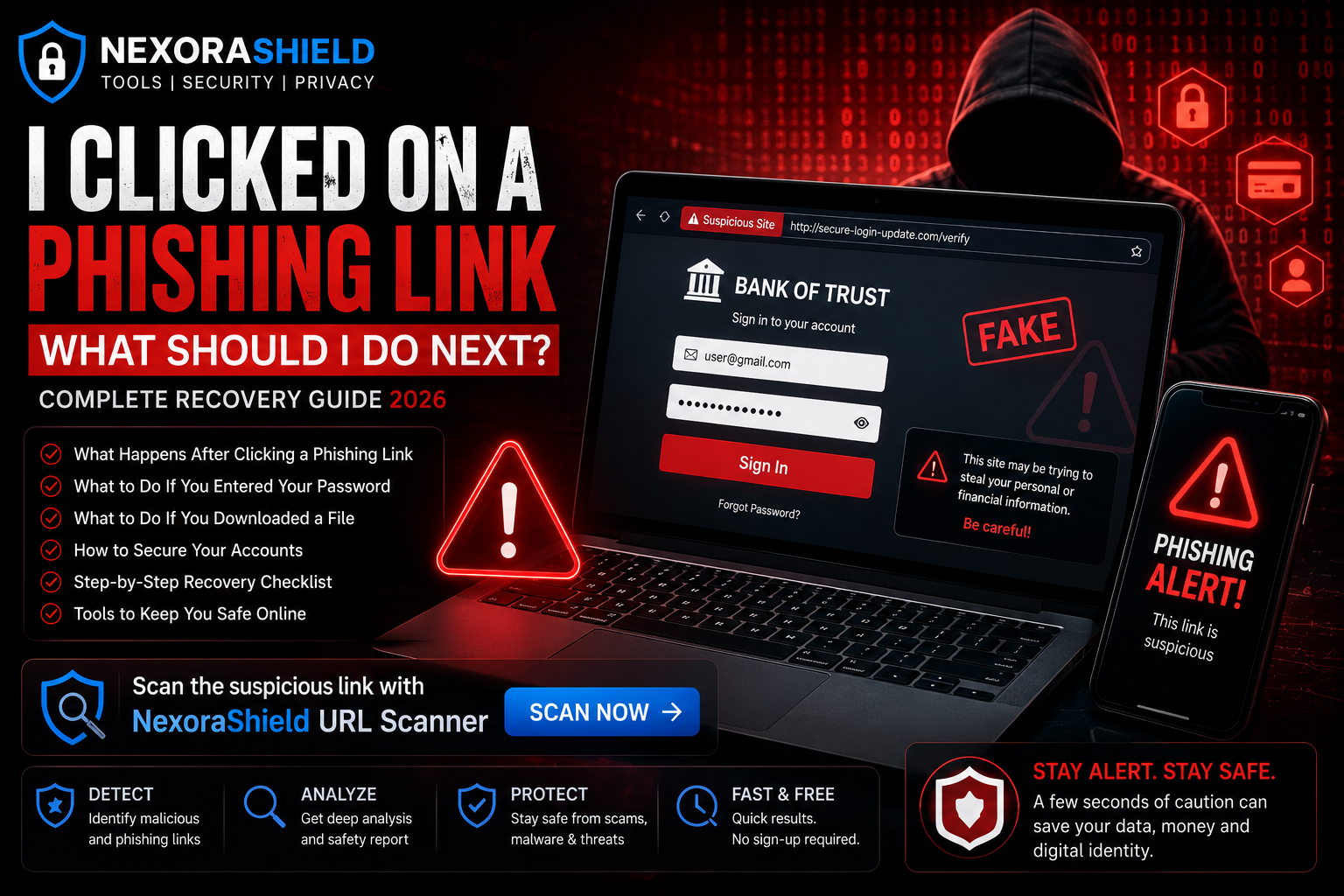
🚨 I Clicked on a Phishing Link — What Should I Do? (Complete Recovery Guide 2026)
Your heart drops.
You receive an email that looks like it's from your bank, Google, Amazon, or Microsoft. Without thinking, you click the link.
A few seconds later, you realize something feels wrong.
Did I just get hacked?
The good news is that clicking a phishing link doesn't always mean your device has been compromised. What matters most is what happened after you clicked it and how quickly you respond.
This guide will walk you through exactly what to do if you've clicked a phishing link, whether you entered your password, downloaded a file, or simply opened the page.
First: Don't Panic
Thousands of people accidentally click phishing links every day.
The important thing is to act immediately.
The faster you respond, the lower your risk.
Scenario 1: You Only Clicked the Link
If you clicked the phishing link but didn't enter any information and didn't download anything, you're likely in a much safer position.
What you should do:
✅ Close the webpage immediately.
✅ Clear your browser cache and cookies.
✅ Run a security scan using trusted antivirus software.
✅ Monitor your accounts for unusual activity over the next few days.
Scenario 2: You Entered Your Password
This is more serious.
Attackers may now have your login credentials.
Do this immediately:
Change your password.
Change passwords for any other accounts where you reused the same password.
Enable Multi-Factor Authentication (MFA).
Review recent login activity.
Log out of all active sessions if the service supports it.
Scenario 3: You Downloaded a File
Never open unknown downloads.
If you've already downloaded or opened the file:
Disconnect from the internet if you notice suspicious behavior.
Run a full malware scan.
Delete the file if it's confirmed to be malicious.
Update your operating system and antivirus software.
If the file requested administrator permissions, treat the situation as high risk.
Scenario 4: You Entered Banking Information
Time is critical.
Immediately:
Contact your bank.
Freeze or monitor your cards.
Change your online banking password.
Enable transaction alerts.
Watch for unauthorized payments.
How to Check if Your Account Has Been Compromised
Look for these warning signs:
Password suddenly stops working.
Login alerts from unknown locations.
Emails marked as read without your knowledge.
Unknown devices connected to your account.
Password reset emails you didn't request.
Suspicious transactions.
How to Protect Yourself After a Phishing Attack
Enable Multi-Factor Authentication
Even if attackers know your password, MFA makes unauthorized access much more difficult.
Change Important Passwords
Start with:
Email
Banking
Password Manager
Social Media
Cloud Storage
Your email account should be the first priority because it can be used to reset other passwords.
Scan Your Device
Use trusted security software to perform a complete system scan.
Don't ignore browser extensions—they can also be malicious.
Check Browser Extensions
Remove extensions you don't recognize.
Fake extensions are increasingly used to steal passwords and browsing data.
Update Everything
Install updates for:
Windows/macOS/Linux
Browser
Mobile Device
Security Software
Security updates often patch vulnerabilities exploited by attackers.
How to Identify a Phishing Website
Most phishing websites have one or more of these warning signs:
Misspelled domain names
Poor-quality design
Unexpected login requests
Urgent messages like "Your account will be suspended!"
Fake security warnings
Suspicious pop-ups
Always verify the URL before entering personal information.
How NexoraShield Can Help
Before entering sensitive information on an unfamiliar website, use NexoraShield's URL Scanner and SSL Certificate Checker to inspect the website's security.
A few seconds of verification can help you avoid identity theft, financial fraud, and account compromise.
Emergency Recovery Checklist
If you've clicked a phishing link:
☑ Close the page.
☑ Disconnect if malware is suspected.
☑ Change affected passwords.
☑ Enable MFA.
☑ Scan your device.
☑ Check login history.
☑ Contact your bank (if payment information was shared).
☑ Monitor your accounts over the next several weeks.
Final Thoughts
Phishing attacks are becoming more convincing every year, especially with the help of artificial intelligence.
The good news is that quick action can significantly reduce the damage.
If you ever click a suspicious link, don't panic—follow the recovery steps in this guide, secure your accounts, and verify unfamiliar websites before interacting with them in the future.
Cybersecurity isn't about never making mistakes. It's about knowing how to respond when something goes wrong.
🔎 Recommended NexoraShield Tools
URL Scanner
SSL Certificate Checker
Password Strength Checker
WHOIS Lookup
Frequently Asked Questions
Can clicking a phishing link hack my phone?
Simply clicking a link doesn't always infect your device. The biggest risks occur if you download files, install apps, or enter sensitive information.
Should I factory reset my phone?
Usually, no. A factory reset is only necessary if malware is confirmed or your security software cannot remove the infection.
Can phishing websites steal passwords?
Yes. Fake login pages are specifically designed to capture usernames and passwords.
Malware Checker
Scan a URL for malware, blacklisting, and malicious redirects.
Password Strength Checker
Test password entropy and breach exposure.
Email Breach Checker
Check if an email address has appeared in a data breach.